


How to create a scored quiz
When people answer a question, you can award them points. You can award points for getting the whole answer right, deduct points for incorrect responses, or assign partial points based on the learner's response.
At the end of the quiz, FlexiQuiz automatically calculates each learner’s total score by adding together the points earned for every question. You can also manually adjust the points awarded after the quiz has been submitted.
You can share the results with test-takers during the quiz, after they submit all responses or email them at any time.
For non-scored activities such as surveys, feedback forms, and personality tests, you can choose not to award any points or show a results page.
How to assign points on your quiz
- To start, create a quiz or learning activity and add a question. From the Create screen, click Add Element+ and select a question.
- Add your question along with any answer options.
- Choose how you want to award points.
Option 1: points per question
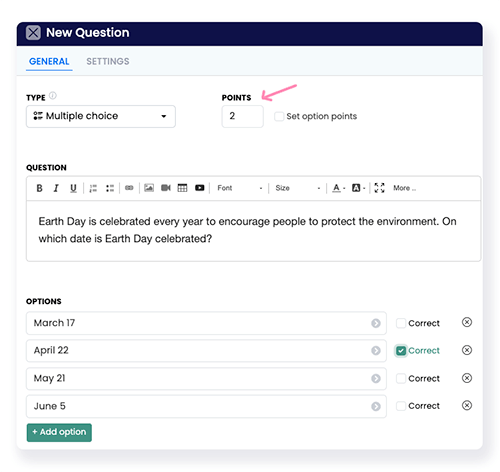
Test-makers must answer the whole question correctly to get points. You can add a question that requires one or multiple responses.
To assign the points:
- Define the correct response or responses. For example, if you are adding a multiple-choice question, click the box next to the correct response.
- Next, go to the Points box and adjust the number of points you want to award.
- Click Save to add the question to your quiz.
Option 2: points per answer option
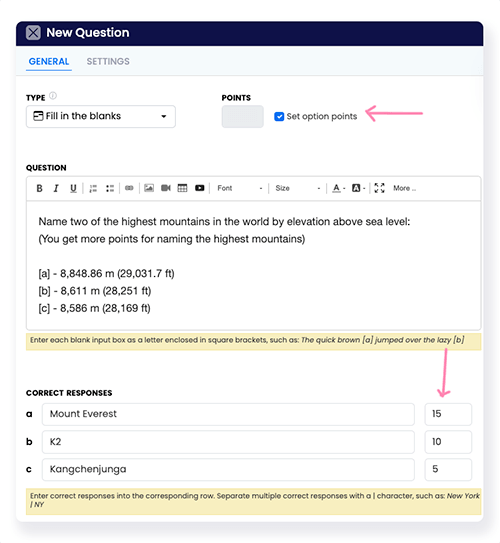
You can award or deduct points based on the student’s responses. This allows you to give students a partial credit for choosing certain answers.
How to set up:
- Tick the box Set option points.
- A points box will appear next to each answer option.
- Enter the number of points you want to add or deduct in each box.
- Click Save to add the question to your quiz.
Manually scoring a quiz
File uploads and free-text questions need to be manually marked due to the nature of the responses. You can also edit the scores on questions that have been automatically marked.
How to manually mark a quiz:
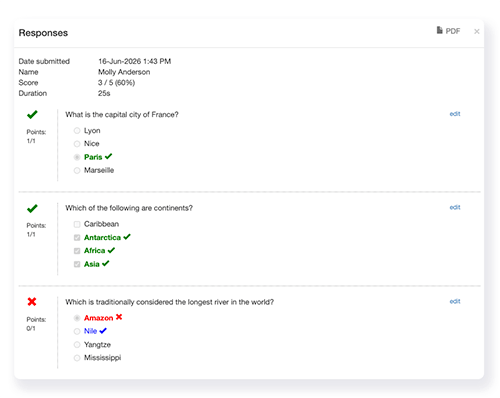
- Create a quiz and share it with your target audience. Once a student submits the quiz, the responses are instantly saved on your Analyze screen.
- To view the responses and manually score the quiz, click on the Analyze tab.
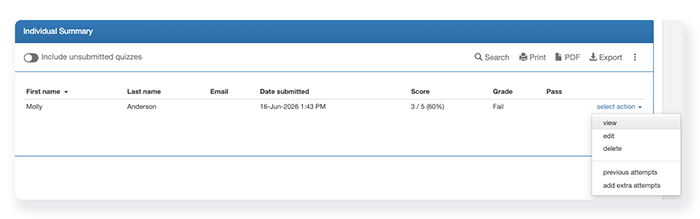
- Scroll down the results table to find the user. Or enter their details in the search bar.
- Next to the user's name, click select action.
- Then choose view from the drop-down menu. A list of all questions and responses will appear. You can scroll up and down the page to find the relevant questions.
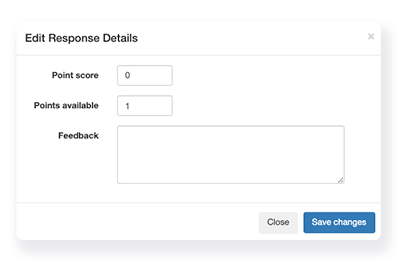
- Click edit next to the relevant question. The Edit Response Details box will appear.
- In the Points score box, enter the number of points you want to award for the question.
- In the Points available box, enter the total number of available points for the question.
- In the Feedback box, you can enter any information about your scoring.
- Then click Save changes to update the quiz's scoring.
FlexiQuiz will automatically recalculate the learner's score and update their results based on the revised grading.
You can also notify the learner of their updated score by email. Explore how to email students their results.
Frequently asked questions
Can I update the scoring after I publish the quiz?
Yes, you can update the number of points you want to award for each question on the Create screen at any time. Any future quiz submissions will be automatically scored using the updated point values.
To ensure accurate and consistent results, we recommend avoiding changes to the scoring while respondents are actively taking the quiz.
Can I award points with a decimal place?
Yes, you can award points with up to two decimal places. For example, you can award someone 2.55 points based on their response.
Can the students see how many points they got for each question?
Yes, at the end of the quiz, you have the option to share a PDF of the quiz questions. The PDF can list all of the questions along with the number of available points and the number of points the student earned.
Relevant help guides
How to show people their score on the results page
How to show custom feedback and results
Redirect learners to their next quiz based on their score
Back


